Showing posts with label How to Change Blog Template. Show all posts

Tuesday, February 16, 2010

How to change blogger template - update

change blogger templateI receive many visitors on this blog for 'How to change blogger template' post. This post was written in January 2009 i.e. one year back.

Recently the blogger.com as come up with many new and updated features. They have also updated the feature of changing to third party template.

Earlier when we were uploading the third party template the widgets were getting lost , so we need to take backup of this widgets i.e. saving code of each widget.

Now after uploading the new template from PC when we try to save it , it asks whether we want to 'Keep widgets' or 'Delete widgets' as shown in picture below.
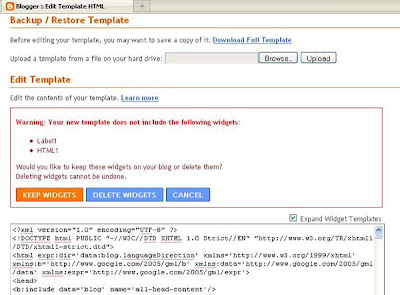

So you need to click on 'Keep widgets' and then view your blog. Sometimes it is found that the widgets are not at proper place i.e. sidebar widgets can be in header. So go to 'Layout> Page elements' and drag your widget at appropriate place and then click save. Now again check your blog . It is ready with your new template !

Do not forget to take backup of your original template before going for this template change process by clicking on 'Download Full Template' option as shown in image above and save it on your hard disk. And read my earlier post 'How to change blogger template ' for all other steps.

Monday, January 5, 2009

How to change Blogger blog template

Personally I feel three column blogger templates are better and I have mentioned resources for free blogger templates in my earlier post free-blogger-templates-resources

So you may want to change your blogger blog template to a better professional looking template and here is guide for it.


To change blog template please follow the following steps

Steps for installing default blogger templates

1) After login to your blogger account go to

Dashboard > Layout > Pick new template

Then you can choose from available templates on blogger.com and click Save template.
You need to save widgets before doing this as mentioned below.

Steps for installing third party blogger templates

1) Suppose you want to install some other third party template which is not on blogger website.
Then you can download the template you like from the website and can save that template on your hard drive .

2) Then you need to backup your original template first. For this from Dashboard go to > Layout > Edit HTML > Download full template > choose save to disk and save it on your hard disk.
This backup is helpful if anything goes wrong with new template.

3) Now when we change template , the widgets are lost .Widgets are your added page elements like visitors counter , html script , link list etc. So you need to download code of each widget properly name it and save it with notepad as a text file. To copy code of each widget you need to go to Page elements then edit and you can view the code of respective page element which you can copy and then paste in Notepad.

4) Now go to Dashboard > Layout > Edit HTML > Browse
Choose saved template from your hard disk and click Upload.
This will give you warning for widgets to be deleted.
Then you can continue with save template.
Your new template is installed , so view your blog and check it

5) Now start installing each widgets you have saved earlier by going to Page Elements > Add a Gadget.

Hope this post is useful and works out.

Visit blogadda.com to discover Indian blogs

blog directory