Tuesday, March 3, 2009

Privacy Policy

We use third-party advertising companies to serve ads when you visit our website. These companies may use information (not including your name, address, email address, or telephone number) about your visits to this and other websites in order to provide advertisements about goods and services of interest to you.

  • Google, as a third party vendor, uses cookies to serve ads on this site.
  • Google's use of the DART cookie enables it to serve ads to users of this site based on their visit to this sites and other sites on the Internet.
  • Users may opt out of the use of the DART cookie by visiting the Google ad and content network privacy policy.

Monday, January 5, 2009

How to change Blogger blog template

Personally I feel three column blogger templates are better and I have mentioned resources for free blogger templates in my earlier post free-blogger-templates-resources

So you may want to change your blogger blog template to a better professional looking template and here is guide for it.


To change blog template please follow the following steps

Steps for installing default blogger templates

1) After login to your blogger account go to

Dashboard > Layout > Pick new template

Then you can choose from available templates on blogger.com and click Save template.
You need to save widgets before doing this as mentioned below.

Steps for installing third party blogger templates

1) Suppose you want to install some other third party template which is not on blogger website.
Then you can download the template you like from the website and can save that template on your hard drive .

2) Then you need to backup your original template first. For this from Dashboard go to > Layout > Edit HTML > Download full template > choose save to disk and save it on your hard disk.
This backup is helpful if anything goes wrong with new template.

3) Now when we change template , the widgets are lost .Widgets are your added page elements like visitors counter , html script , link list etc. So you need to download code of each widget properly name it and save it with notepad as a text file. To copy code of each widget you need to go to Page elements then edit and you can view the code of respective page element which you can copy and then paste in Notepad.

4) Now go to Dashboard > Layout > Edit HTML > Browse
Choose saved template from your hard disk and click Upload.
This will give you warning for widgets to be deleted.
Then you can continue with save template.
Your new template is installed , so view your blog and check it

5) Now start installing each widgets you have saved earlier by going to Page Elements > Add a Gadget.

Hope this post is useful and works out.

Visit blogadda.com to discover Indian blogs

blog directory

Monday, February 25, 2008

Blogger Help

From the comments I receive on this blog , I feel my posts are useful to bloggers. That was the main intention of starting this blog and I get encouraged by this comments and I do receive different queries asking for different types of blog related help.
So I thought of starting a Blogger help section here where you can ask any help related to your blog .You can also answer other bloggers question. This way we will be able to help more and more blogger to grow and succeed .

Following are the Frequently Asked Questions (FAQ)

1) How to increase my blog income ? Or make money online ?
2) How to increase my blogs traffic ?
3) How to add google adsense in post body ?
4) How to get higher search engine ranking ?
5) My blog is not listed in search engine.
6) All my posts/pages are not there in google /yahoo search engine index.
7) How to use Stumble upon or Digg for getting more traffic.
8) What is title optimization?
9) How to optimize google adsense on my blog?
10) Which advertising or affiliate program I should use ?
11) What are popular keywords for my blog ?
12) Where can I get free blogger template ?
13) How to use webmaster tools?

and more ...
I have already answered some of this by writing posts on this blog and by email.

So please fell free to ask your question here. Or leave your comment here.


Visit blogadda.com to discover Indian blogs

Wednesday, February 13, 2008

Adding Google Adsense anywhere in blog post

If you have a blogspot /blogger blog and want to add Google adsense anywhere in your post body you have come to right place !
In post body you can add google adsense at
1) Top of the post , below the title of the post. ( 468 x 60 or 336 x 280 google adsense unit)
2) A 200 x 200 google adsense unit at right or left hand top corner of the post.
3) At bottom / footer of the post above comments . ( 468 x 60 or 336 x 280 google adsense unit)

Please note that you have to add the google adsense code ( procedure given below) only once in HTML code of your blog template and the google ads will appear in three latest posts as only 3 such units are allowed by Google Adsense. So from fourth post you may observe a blank space in your post.

To add the Google adsense in your blog post following is the steps summary.

1) Generate Google adsense code with the size and colors of your choice.
2) Parse the google adsense code .
3) Copy and paste parsed code at appropriate place in html code of your blog template.(please save your original template before this)
4) You may need to add some html code line for aligning your adsense unit on left , right or center of the post body.

Now above steps in detail :

1) Step 1 is easy as everybody knows to generate google adsense code by logging to their google adsense account.

2) For step 2 you need to copy your google adsense code and paste it at parse your code here
Generate parsed code by clicking on Parse .

3) Now copy this code .Then go to your Dashboard > Layout > Edit Html > Click on Expand Widget templates . Now you have to paste the code at appropriate place as shown in picture below in red color . You can use search option of the browser to search the code shown . Paste the code at any of the one place from the three choice shown.


Adding Google Adsense
Now you can save your template . Please save your original template before this step.

4) Now check your blog , your google ad may not be properly aligned . So you need to add one line of html code before and after the google adsense code .

I will soon add a picture here for this alignment code.

Also note that there are some free blogger templates available on internet where you can directly add google adsense unit at post bottom by going to Layout > Edit ( Blog Posts) > then tick on 'Show Ads Between Posts' .

Monday, January 7, 2008

Making money online

Oh no! This can be your first reaction looking at Title 'Making Money Online' of this post because

Making money online,How to make money online
The internet is flooded with Making money online blogs and websites. Most of these articles are about which advertising program or affiliate program to use on your blog and how to use those advertising programs. But these articles are missing one very important point. And the point is

YOU NEED TO HAVE GOOD TRAFFIC ON YOUR BLOG/ WEBSITE FOR ANY ADVERTISING OR AFFILIATE PROGRAM TO GENERATE REVENUE FOR YOU or TO MAKE MONEY ONLINE.

So even though this blog is not having any post directly on making money online , it is a blog on Making money online. Using tips mentioned in my earlier posts you can have good traffic on your blog within 3 to 5 months coming form various sources like search engine, blog directories, socializing sites, discussion, forums etc. Once you have traffic of say 500 to 1000 visits per day (not visitors) , even if you use advertising program like google adsense , which is readily available for blogspot users in their 'Add page elements' option, you can start making $1 or $2 per day (or even more :)). If you need any help or have any query in this regard please leave a comment here .


Thursday, December 27, 2007

Free Blogger Templates Resources

To have a better look for your blog or to have 3-column blog templates you need good template resource from where you can download the template and use it free for your blog.
So here I am mentioning free blogger templates resources which you can use. Personally I like 3-column blog templates because we can add more page elements including more google adsense ad units. I have selected these resources based on following criteria

1) They are suitable for different blog topics. Their look is good and professional.
2) There are 2-column blog templates and 3-column blog templates.
3) Some of the templates are SEO friendly.
4) Some templates has facility to add google adsense code into post body.

This templates are for blogger/blogspot users. I will add resources for wordpress users later.

http://freshbloggertemplates.blogspot.com/
http://www.finalsense.com/services/blog_templates/index.htm
http://blogger-templates.blogspot.com/
http://webtalks.blogspot.com/2007/04/downlaod-three-column-new-
blogger.html
http://freeskins.blogspot.com/
http://www.eblogtemplates.com/templates/blogger-templates/

I will keep updating this list. If you know any good resource for blog templates please leave a comment here .

Saturday, December 22, 2007

How to add video to blog post

In my earlier post , I have discussed about adding and optimizing pictures on blog post . Today we will discuss adding video to blog post.This article is for blogger / blogspot blogs only. Adding video to blog post makes it more interesting and attractive.
You can add video from three main sources.
1) Video stored on your computer harddisk. You might have shoot it using your cell phone and then downloaded to your PC.
2) Video from youtube.com
3) Video from video.yahoo.com

Now we will discuss how to add video from this three sources

1) For adding video from your PC , please go to create new post then in the post toolbar you will find a 'Add video' button or icon , at second last position from right hand side as shown below.

Add video to blog postThen you have to select file from your PC by clicking on Browse , then give title and click upload video. But please remember that your video file format should be AVI, MPEG, QuickTime, Real, and Windows Media. And maximum file size of 100MB . If you have saved your video from cell phone , file format can be different , so please convert it to any of above format using proper video conversion utility software.

2) For adding video from youtube.com , after going on this site , you have to select the video you want to add. Then on the right hand side of the screen or browser window you will find Embed and html code written there as shown below.You have to select that code and paste into your post in edit html mode.
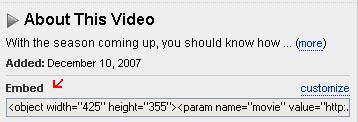
Add youtube video to blog postYou can change size of window for video by changing width and height pixels.

3) For adding video from video.yahoo.com , after going to this website you have to select your video.Then below the video it is written Add to site and the html code will be there as shown below. You have to copy this code and paste it on you blog post in Edit html mode.


Add yahoo video to blog postYou can resize window size for video by changing width= and height= pixel no.s

I hope you like this post and is useful to you.